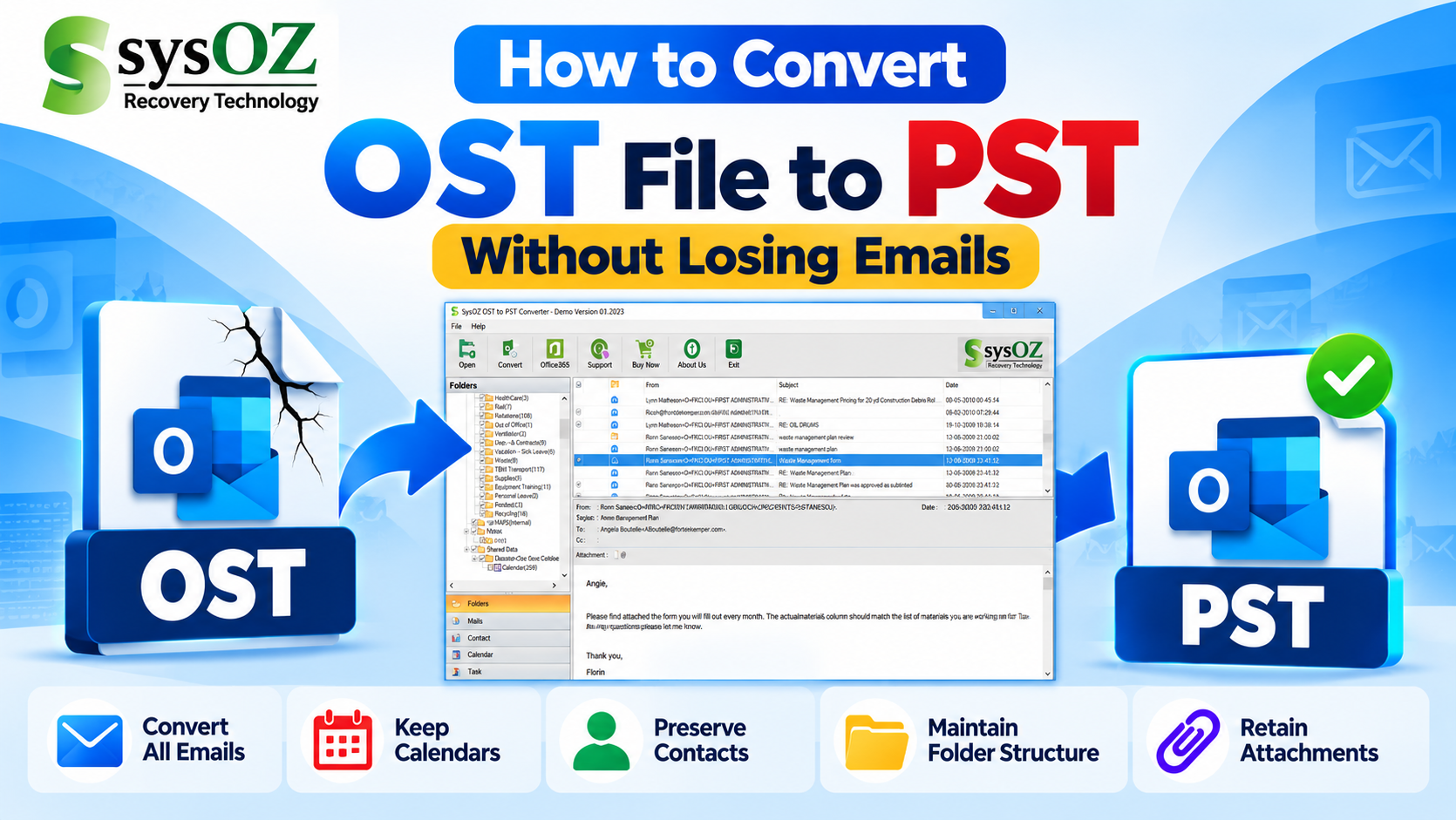
How to Convert OST File to PST Without Losing Emails
Microsoft Outlook uses OST files to store a synchronized copy of mailbox data. However, when an Outlook profile is unavailable, an Exchange account is disconnected, or an OST file becomes inaccessible, users may need to convert the OST file into PST format to access their mailbox data.
Why Convert OST to PST?
Converting an OST file to PST can be useful when you need to:
Access mailbox data outside the original Outlook profile
Recover emails from an inaccessible OST file
Create a backup of Outlook mailbox data
Transfer emails and other mailbox items to another Outlook profile
Save important emails, contacts, calendars and other data in PST format
How to Convert OST to PST?
A reliable OST to PST conversion process generally involves the following steps:
Step 1: Select the OST File
Locate the OST file on your computer and select it for conversion. If you are working with important mailbox data, keep a backup of the original OST file before starting the process.
Step 2: Scan the OST File
Use an OST to PST conversion tool to scan the selected file. The software analyzes the mailbox structure and identifies available data.
Step 3: Preview Mailbox Data
After scanning, preview available folders such as Inbox, Sent Items, Drafts, Contacts and Calendar. This helps verify that the required mailbox data is accessible.
Step 4: Select the Required Data
Choose the mailbox folders or individual items you want to save.
Step 5: Export OST Data to PST
Select PST as the output format and start the conversion. The software creates a PST file containing the selected mailbox data.
Step 6: Open the PST File in Outlook
After conversion, open the resulting PST file in Microsoft Outlook and verify the emails, attachments, contacts, calendars and folder structure.
Can You Convert OST to PST Manually?
If the original Outlook profile and Exchange mailbox are still accessible, you may be able to export mailbox data to a PST file using Outlook's built-in export feature. However, Outlook does not provide a direct option to open an orphaned or inaccessible OST file and save it as PST.
If the OST file belongs to an unavailable Outlook profile, the Exchange account is disconnected, or the OST file is inaccessible, the standard Outlook export method may not be sufficient.
In such situations, a dedicated OST to PST converter can provide an alternative way to scan the OST file, preview available mailbox data, and export the selected items to PST.
How to Export Outlook Mailbox Data to PST
If your Outlook mailbox is accessible, you can use Outlook's built-in export feature to create a PST file.
Step 1: Open Outlook
Start Microsoft Outlook and make sure the mailbox containing the data you want to export is accessible.
Step 2: Open the Import/Export Wizard
Go to File → Open & Export → Import/Export.
Step 3: Select Export to a File
Select Export to a file and click Next.
Step 4: Select Outlook Data File
Choose Outlook Data File (.pst) and click Next.
Step 5: Select the Mailbox Folder
Select the mailbox folder you want to export, such as Inbox, Sent Items, Contacts, or Calendar. Select Include subfolders if you want to include the folders underneath the selected mailbox folder.
Step 6: Select the Destination
Click Browse, choose a location for the PST file, enter a file name, and continue with the export.
Step 7: Complete the Export
Follow the prompts to complete the export. If Outlook asks you to create a password for the PST file, you can set one if required.
Important Limitation
The Outlook export method is useful when the mailbox and Outlook profile are accessible. It does not directly convert an inaccessible or orphaned OST file into PST.
Direct OST to PST Conversion Alternative
When you only have an OST file and cannot access the original Outlook profile or Exchange mailbox, a dedicated OST to PST conversion solution may be required.
A typical direct OST conversion process includes:
1. Select the OST file you want to convert.
2. Scan the OST file to identify available mailbox data.
3. Preview mailbox items such as emails, attachments, contacts, calendars, and folders.
4. Select the required data for export.
5. Choose PST as the output format.
6. Save the converted data as a new PST file.
7. Open the PST file in Outlook and verify the exported mailbox data.
This approach can be useful for users dealing with inaccessible OST files or situations where the original Outlook profile is no longer available.
For an automated conversion option, you can explore SysOZ OST to PST Converter, which is designed to scan OST files, preview mailbox data, and export selected mailbox items to PST.
Convert OST to PST with SysOZ
SysOZ OST to PST Converter is designed to help users convert OST mailbox data into PST format. It provides an interface for scanning OST files, previewing mailbox items and exporting selected data to PST.
The tool can be useful for users dealing with inaccessible OST files or those who need to preserve mailbox data in PST format.
Learn more about SysOZ OST to PST Converter:
https://www.sysoz.com/products/ost-to-pst-converter.html
Tips Before Converting an OST File
Before starting the conversion process:
Keep a backup copy of the original OST file.
Make sure sufficient disk space is available.
Avoid modifying or overwriting the original OST file.
Preview the mailbox data before exporting.
Verify the converted PST file in Outlook after conversion.
Conclusion
Converting an OST file to PST can provide a practical way to access and preserve Outlook mailbox data when the original Outlook profile or Exchange connection is no longer available. Using an appropriate OST to PST converter can simplify the process and help maintain important mailbox information in an accessible PST file.
For an automated conversion option, you can explore SysOZ OST to PST Converter and check its available features and free trial.
Comments