How to Convert OST to PST – Complete Step-by-Step Guide
Outlook OST files are commonly used to keep a synchronized copy of mailbox data for offline access. However, when an Outlook profile is removed, an account is changed, synchronization stops working, or an OST file becomes inaccessible, accessing the stored mailbox information can become difficult.
In these situations, converting the available OST data into a PST file can be useful for migration, backup, archiving, or accessing mailbox information in another Outlook environment.
This guide explains how to convert OST to PST and what you should know before choosing a conversion method.
What Is an OST File?
An OST, or Offline Storage Table, is an Outlook data file used to store a synchronized local copy of mailbox information. Depending on the account and Outlook configuration, it may contain emails, attachments, contacts, calendars, tasks, notes, and other mailbox items.
An OST file is generally associated with the Outlook profile and account that created or synchronized it.
Why Convert OST to PST?
There are several reasons why users may need to convert OST data to PST, including:
Moving mailbox information to another Outlook profile.
Creating an independent copy of available mailbox data
Accessing data from an old or orphaned OST file
Recovering information from an inaccessible OST
Migrating selected mailbox folders
Archiving important emails and attachments
How to Convert OST to PST?
The best approach depends on whether the original Outlook profile is still working.
Method 1: Export OST Data Using Outlook
If your Outlook account and mailbox are accessible, you can use Outlook's built-in export functionality.
Follow these general steps:
1. Open Microsoft Outlook.
2. Select File.
3. Go to Open & Export.
4. Select Import/Export.
5. Choose Export to a file.
6. Select Outlook Data File (.pst).
7. Choose the mailbox folders you want to export.
8. Select the destination for the PST file.
9. Complete the export process.
This method can work when the mailbox is accessible through the original Outlook profile.
What If Outlook Cannot Access the OST File?
The built-in Outlook export option may not help if the OST file is orphaned, inaccessible, or affected by corruption because Outlook may not be able to access the mailbox normally.
In this situation, specialized OST to PST conversion software can provide another recovery and export method. Such software can scan the OST file, display available mailbox data, and export recoverable information to PST.
Method 2: Convert OST to PST Using SysOZ
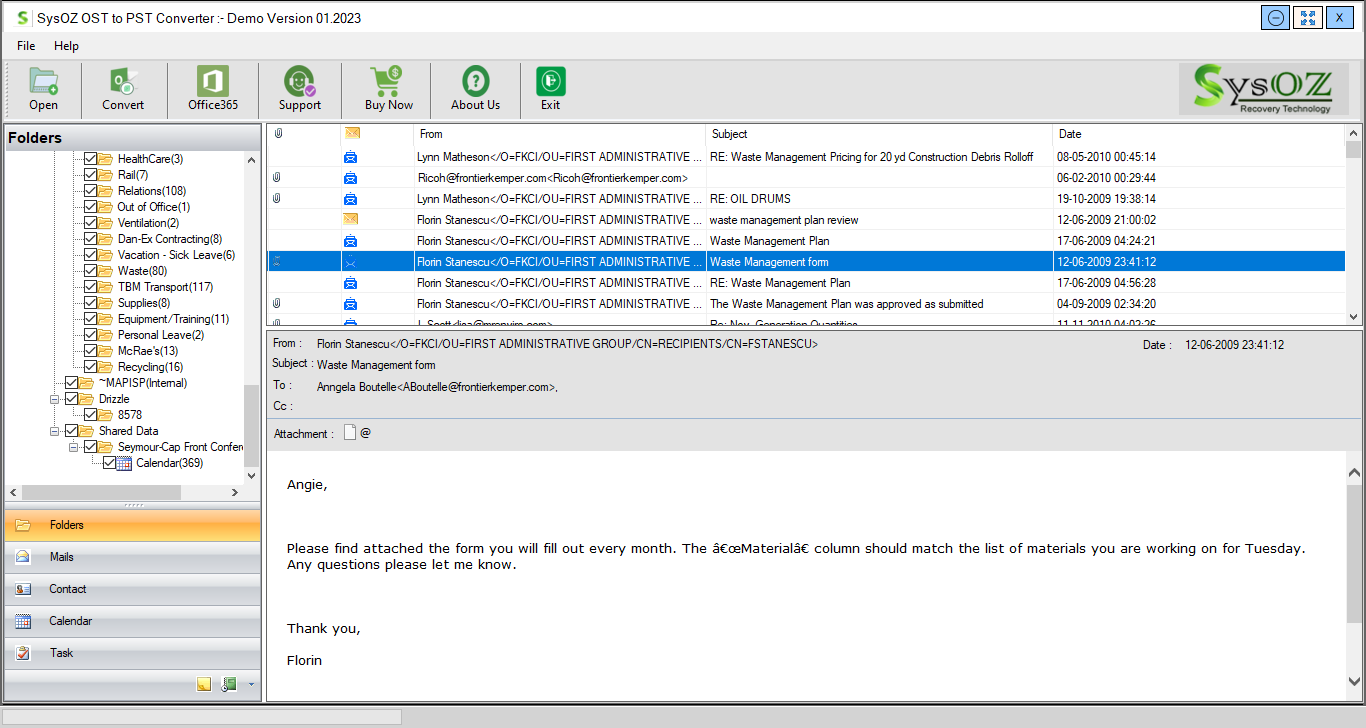
SysOZ OST to PST Converter is designed to help users scan OST files, preview available mailbox information, and export recoverable data into PST and other supported formats.
Step 1: Select the OST File
Open SysOZ OST to PST Converter and select the OST file you want to process.
Step 2: Scan the OST File
Start the scanning process and allow the software to analyze the available OST mailbox structure.
Step 3: Preview Mailbox Data
Preview available emails, attachments, contacts, calendars, tasks, notes, and folders before exporting.
Step 4: Select Required Data
Choose the mailbox folders or individual items you want to save.
Step 5: Choose PST as the Output Format
Select PST as the destination format and configure the available export options.
Step 6: Export the Data
Select the destination location and begin exporting the selected mailbox data.
Can You Convert OST to PST Without Outlook?
When the original Outlook profile is unavailable or cannot access the OST file, a dedicated OST conversion tool can provide an alternative workflow.
Instead of depending on the normal Outlook profile, the software can process the selected OST file, preview available information, and export recoverable mailbox data to PST.
What Data Can Be Exported from an OST File?
Depending on the source file and the data available inside it, an OST conversion process may include:
Emails
Email attachments
Contacts
Calendar items
Tasks
Notes
Journals
Deleted mailbox items
Mailbox folders
The amount of recoverable information can vary depending on the condition and contents of the OST file.
Things to Check Before Converting OST to PST
Before starting the conversion, consider the following:
Keep the original OST file safe.
Always work with a copy when possible.
Check available storage.
Make sure your destination drive has enough space for the resulting PST file.
Preview the data first.
Previewing available mailbox information helps you determine what can be exported.
Verify the output.
After conversion, open or import the resulting PST in a supported Outlook environment and check the required mailbox items.
Frequently Asked Questions
Yes. If the mailbox is accessible, Outlook's export functionality can be used. For inaccessible or orphaned OST files, dedicated conversion software can provide an alternative method.
A dedicated OST conversion application can process the OST file without depending on the normal Outlook profile for the conversion workflow.
If the OST file contains recoverable mailbox information, specialized recovery and conversion software may be able to extract and export available data.
Yes. SysOZ provides a preview workflow so you can examine available mailbox information before exporting it.
Available attachments associated with recoverable emails can be exported along with the corresponding messages, depending on the source file condition.
Yes. You can use the SysOZ free demo to evaluate the software and preview available OST mailbox data before purchasing.
Conclusion
Converting OST to PST can be useful when you need to migrate, archive, or recover Outlook mailbox information. If your original Outlook profile is accessible, the built-in Outlook export option may be sufficient. When the OST file is inaccessible, orphaned, or affected by corruption, dedicated OST to PST conversion software can provide an alternative way to scan, preview, and export available mailbox data.
Convert OST to PST with SysOZ
Need to access data from an OST file?
Scan your OST file, preview available mailbox data, and export the information you need with SysOZ OST to PST Converter.
Comments