How to Repair Corrupt PST File: Complete Outlook Recovery Guide
Microsoft Outlook uses PST files to store emails, attachments, contacts, calendars, tasks, notes, and other mailbox information. When a PST file becomes corrupted or damaged, Outlook may fail to open it properly or some mailbox items may become inaccessible.
A corrupt PST file can result from unexpected system shutdowns, oversized data files, storage problems, software errors, or other interruptions. If important mailbox information is stored in the affected file, recovering the available data should be a priority.
This guide explains how to repair a corrupt PST file, preview available mailbox data, and recover the required Outlook items.
What Causes a PST File to Become Corrupted?
Several situations can cause PST corruption, including:
Sudden system or Outlook shutdown
Large or oversized PST files
Hard-drive or storage problems
File-system errors
Software crashes
Improper Outlook termination
Malware or other system-related issues
Interruptions while accessing or modifying the PST file
The severity of corruption can vary. In some cases, Outlook may open the PST but display missing or damaged items. In other situations, the PST file may not open at all.
Common Signs of a Corrupt PST File
You may have a corrupted PST file if you notice:
Outlook cannot open the PST file
Outlook displays a PST-related error
Emails or folders are missing
Some messages cannot be opened
Attachments are inaccessible
Outlook becomes unusually slow
Outlook repeatedly stops responding
Mailbox folders show errors while loading
Before attempting recovery, it is recommended to keep a backup copy of the original PST file.
How to Repair a Corrupt PST File
The appropriate recovery method depends on the condition of the PST file. A structured recovery process can help identify available mailbox data and save recoverable information.
Step 1: Create a Copy of the Original PST File
Before starting the repair process, create a backup copy of the damaged PST file.
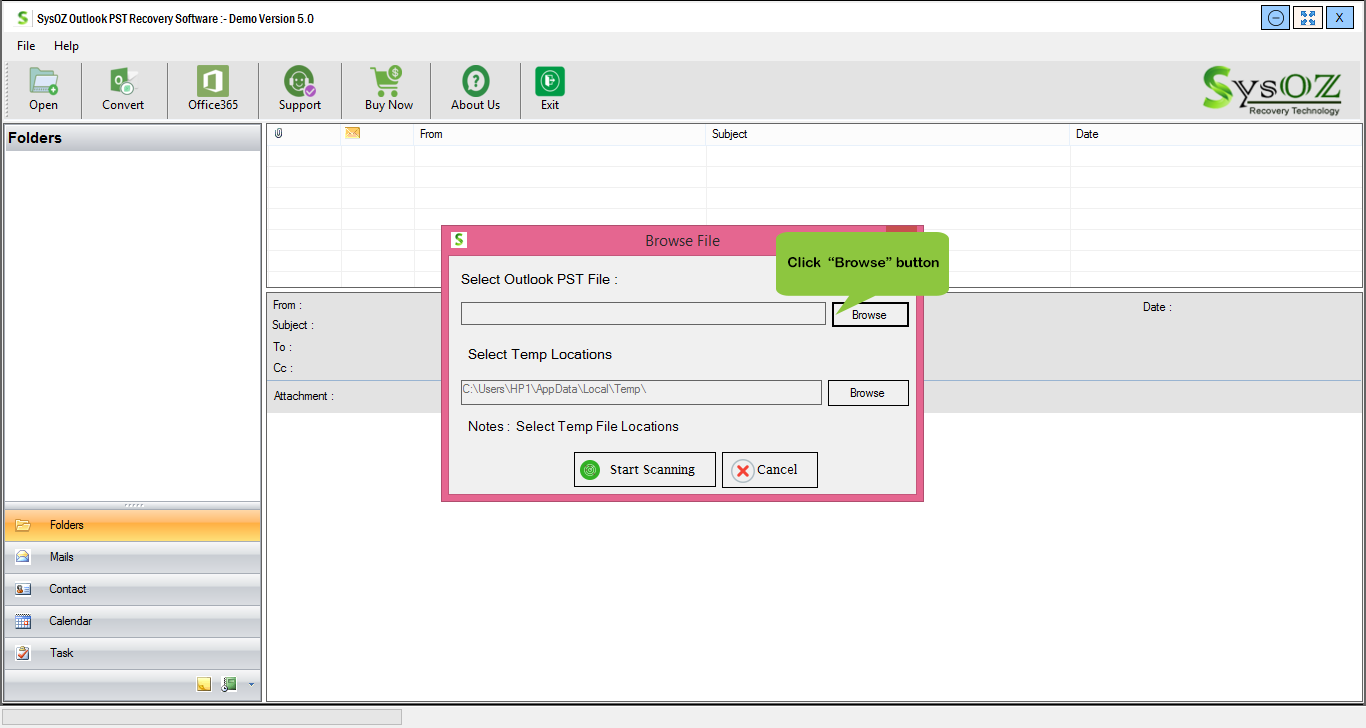
Working with a copy helps protect the original file from accidental changes during recovery.
Step 2: Select the Corrupted PST File
Open a supported PST recovery solution and select the damaged or inaccessible PST file.
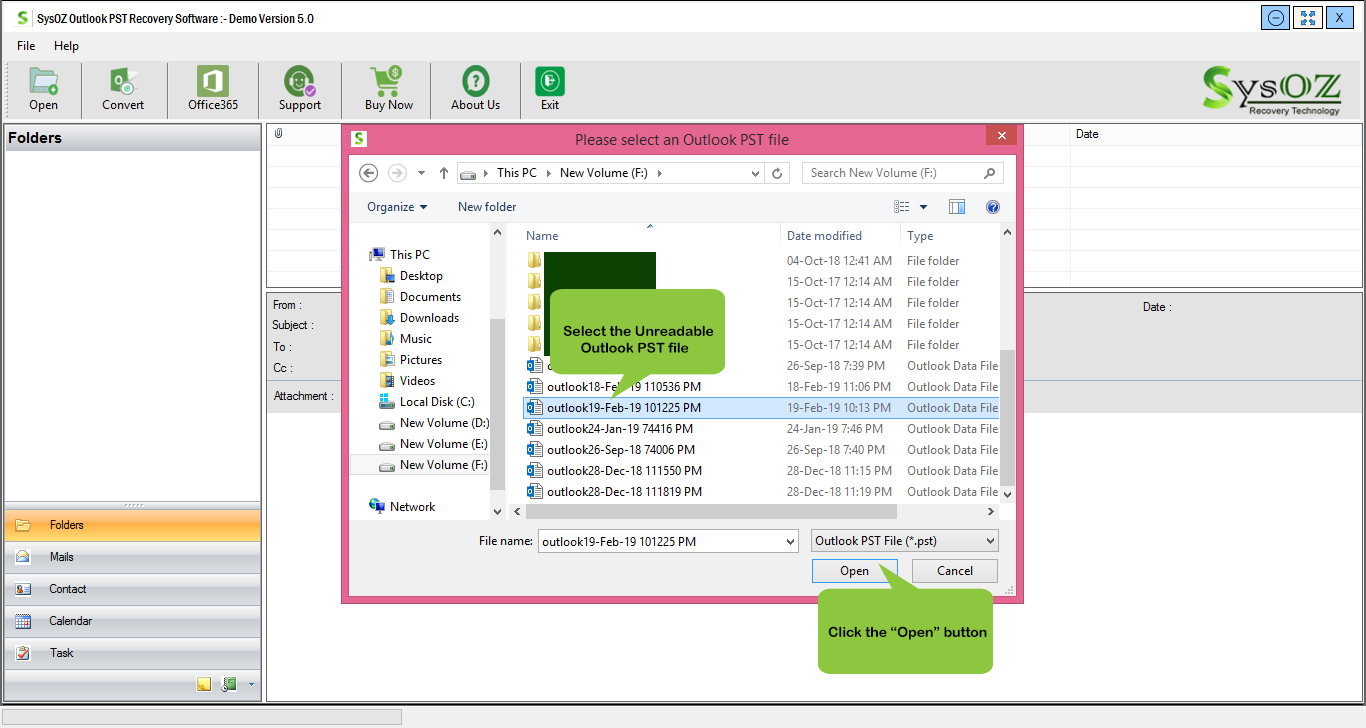
The software can analyze the selected file and prepare it for scanning.
Step 3: Scan the PST File
Start the scanning process to identify available mailbox information.
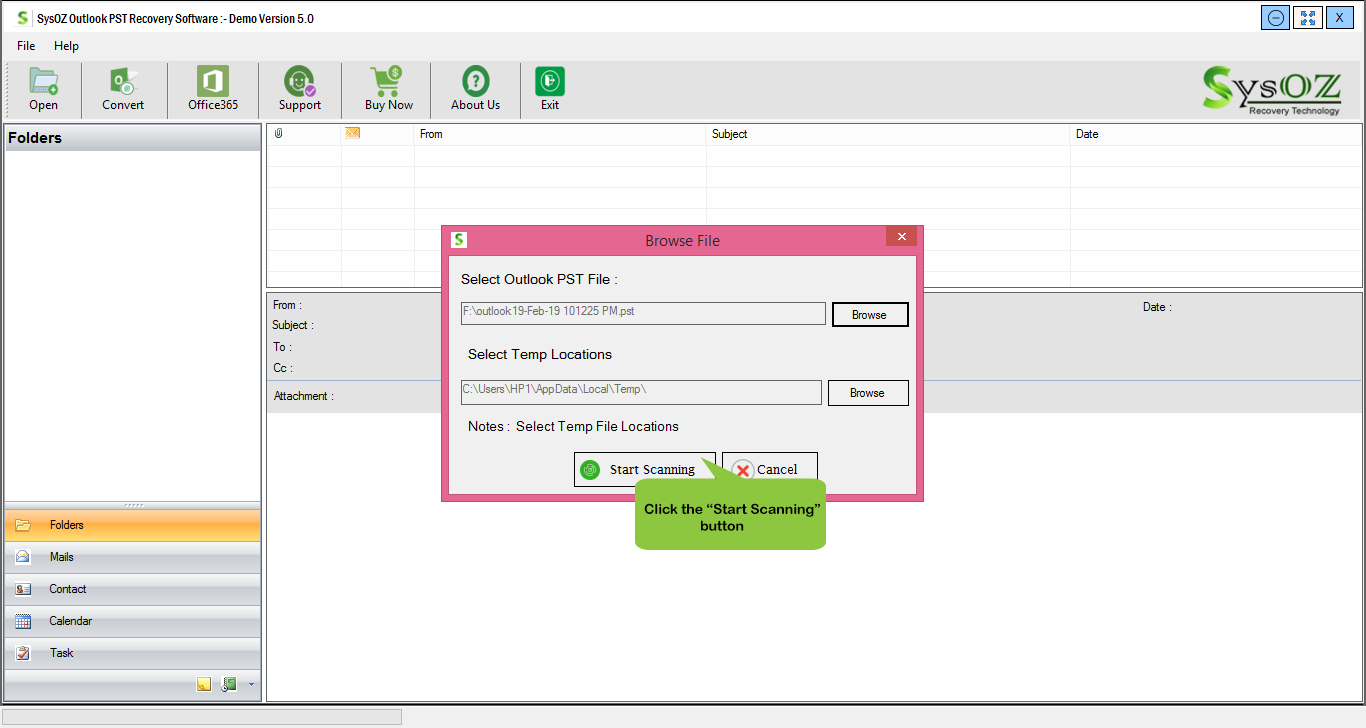
Depending on the condition of the PST file, the scan may identify emails, attachments, contacts, calendars, tasks, notes, folders, and other supported items.
Step 4: Preview Recovered Data
Preview the available mailbox information before saving it.
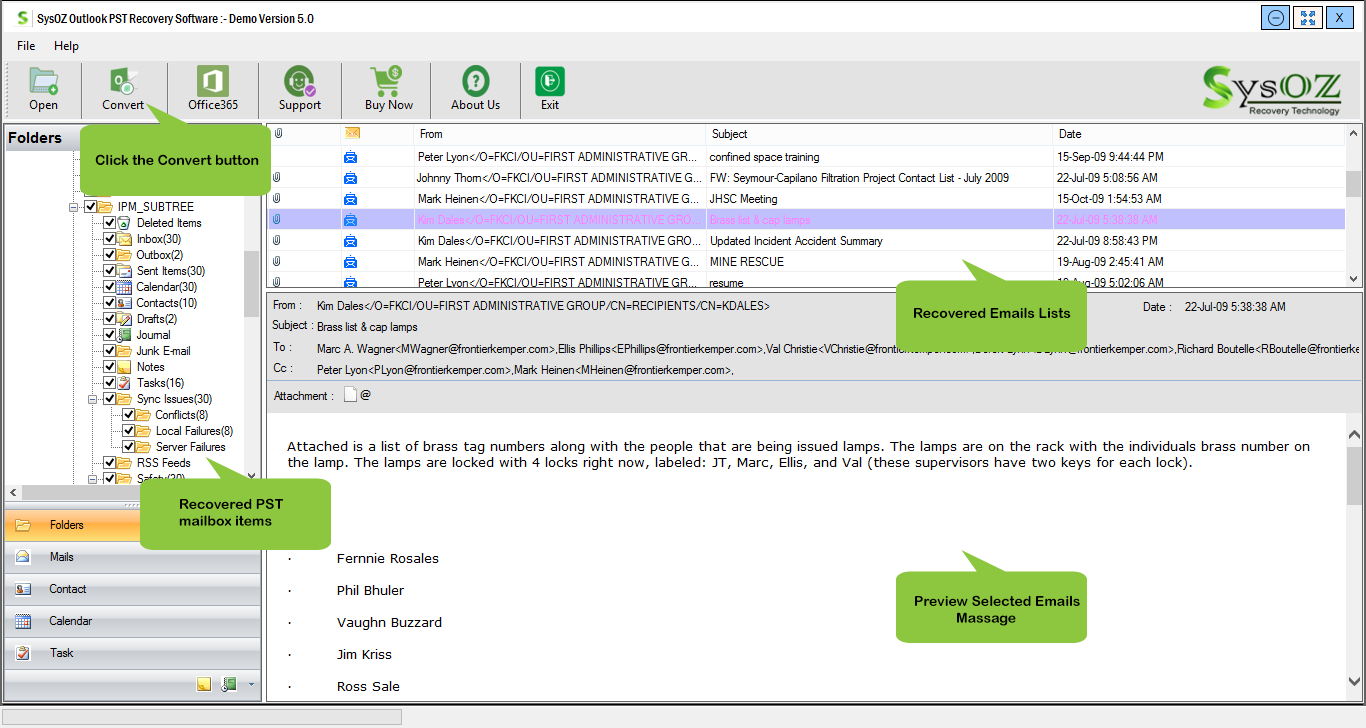
This allows you to check emails, folders, attachments, and other recoverable items and determine which data is accessible.
Step 5: Select Required Mailbox Items
You can select specific emails, folders, or other supported mailbox items instead of recovering everything.
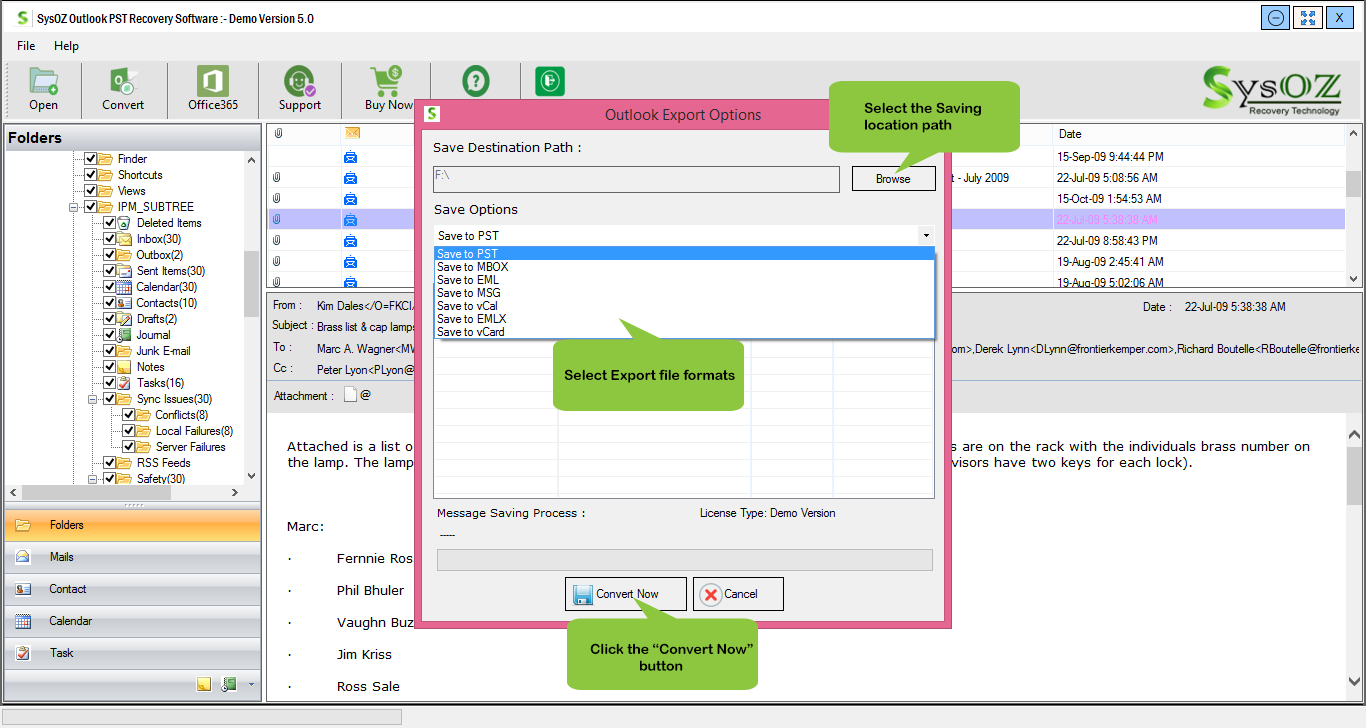
Selective recovery is especially useful when you only need certain information from a large PST file.
Step 6: Save the Recovered Data
After selecting the required items, save the recovered information to a new PST file or another supported output format.
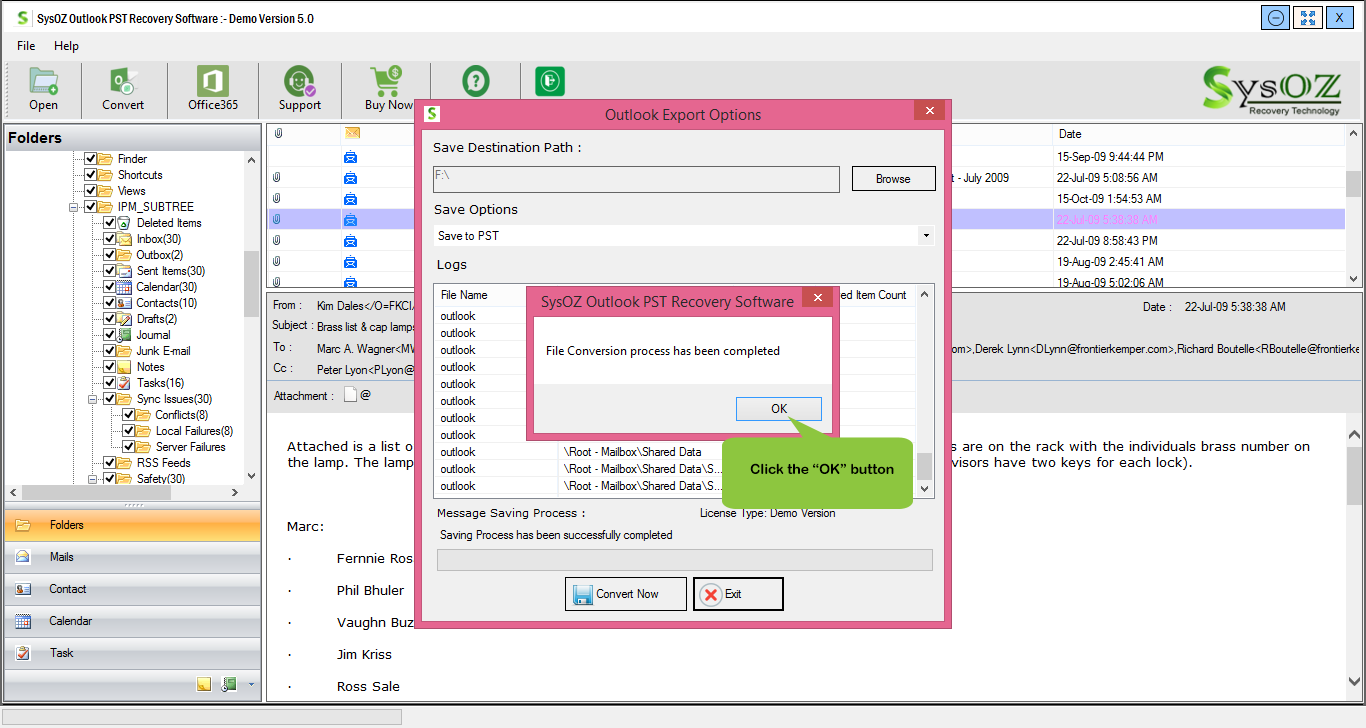
Keeping the recovered data in a new file can help preserve the original corrupted PST for future reference.
How SysOZ PST Recovery Helps
SysOZ PST Recovery Software is designed to help users work with corrupted, damaged, inaccessible, or crashed Outlook PST files.
The software can scan supported PST files, preview available mailbox data, and allow users to select the required items before exporting the recovered information.
You can learn more about the software here:
SysOZ PST Recovery Software
Learn more about SysOZ PST Recovery Software
What Data Can Be Recovered from a PST File?
Depending on the condition of the source PST file, available mailbox information may include: Emails, Email attachments, Inbox, Sent Items, Drafts, Contacts, Calendars, Tasks, Notes, Deleted Items, Other supported mailbox folders
The actual recovery result depends on the condition and accessibility of the source PST file.
Can You Recover Deleted Emails from a Corrupt PST?
In some situations, recoverable deleted mailbox items may still be available within the PST file. A supported recovery solution can scan the file and display available items for preview.
However, recovery results depend on the condition of the PST file and whether the relevant data remains available.
Repair PST File Without Losing Data
When working with a damaged PST, avoid repeatedly modifying the original file. Instead:
1. Keep a backup of the original PST.
2. Work with a copy whenever possible.
3. Preview recoverable data before export.
4. Select the required mailbox items.
5. Save recovered information to a new PST file.
6. Keep the original file unchanged for reference.
These precautions can help reduce the risk of further data loss.
PST Repair vs. PST Recovery
PST repair and PST recovery are related but slightly different.
PST repair generally focuses on fixing structural problems that prevent Outlook from properly accessing the data file.
PST recovery focuses on extracting and saving available mailbox information from a damaged or inaccessible PST file.
When standard Outlook access is not sufficient, a dedicated recovery approach may be useful for retrieving available mailbox data.
Frequently Asked Questions
Yes, a supported PST recovery solution can scan a corrupted or damaged PST file and attempt to recover available mailbox data. The actual recovery result depends on the condition of the source file.
If the email data remains accessible in the source PST, recovery software may be able to extract and save the available messages and attachments.
Yes. SysOZ PST Recovery Software provides a preview of available mailbox data before you save the recovered information.
Yes. You can select individual emails, folders, or other supported mailbox items for selective recovery.
Yes. Available recovered mailbox data can be exported to a new PST file, depending on the selected recovery options.
It is better to keep a backup copy of the original PST and perform recovery using a copy whenever possible.
Conclusion
A corrupt PST file can make important Outlook mailbox information difficult to access. Before making repeated changes to the damaged file, create a backup and use a structured recovery process to identify the available data.
SysOZ PST Recovery Software can scan supported PST files, preview recoverable mailbox items, and help users selectively save available data to a new PST file or supported output format.
Comments