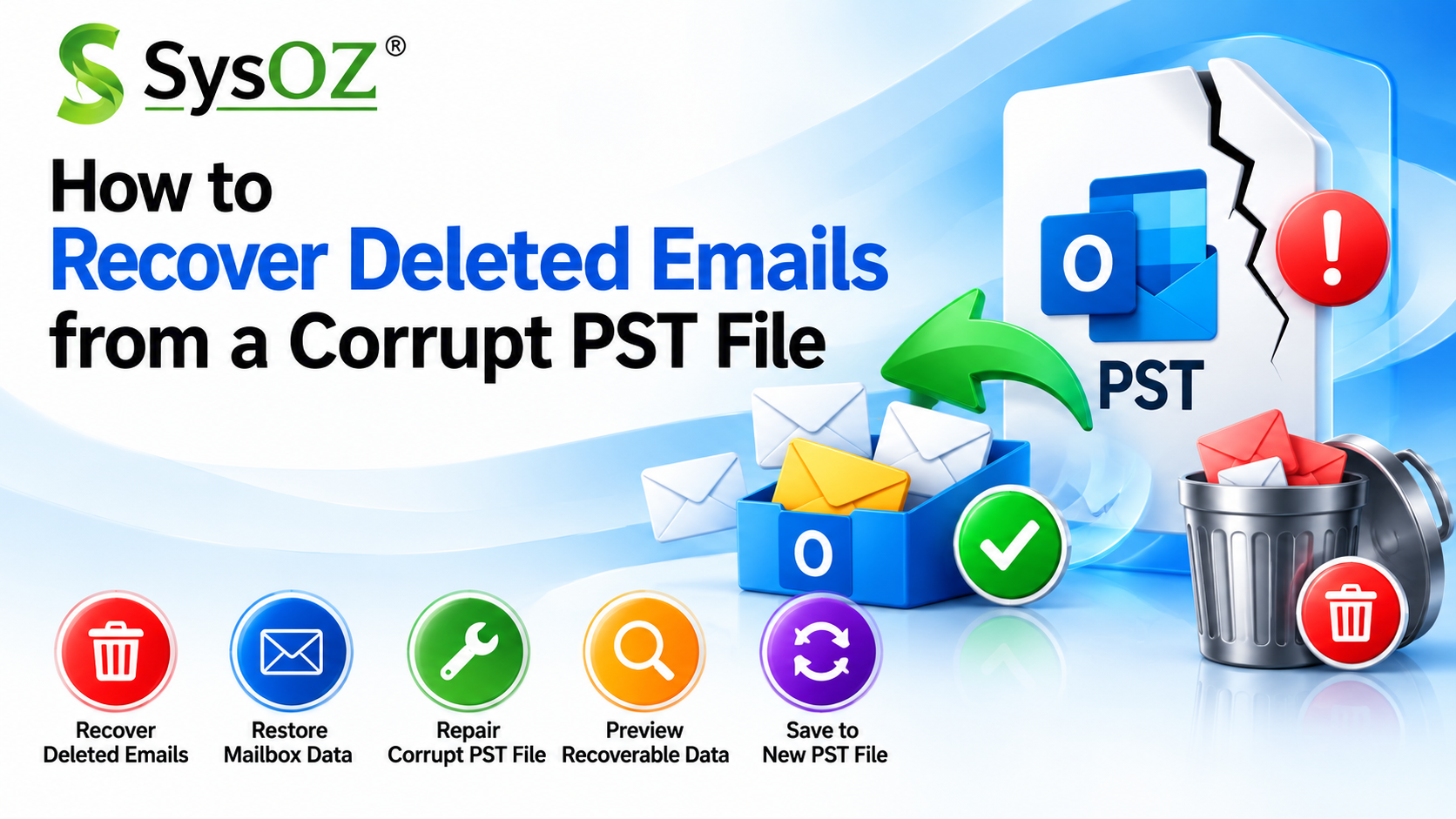
How to Recover Deleted Emails from a Corrupt PST File
Microsoft Outlook PST files store important mailbox data such as emails, contacts, calendars, tasks, and other Outlook items. When a PST file becomes corrupted, users may have difficulty opening Outlook or accessing their stored emails.
The situation can become more complicated when important emails have also been deleted. Fortunately, depending on the condition of the PST file, there are several methods you can try to recover deleted or inaccessible Outlook data.
Why Do Emails Become Deleted or Inaccessible?
Emails may become unavailable because of several reasons, including:
Accidental deletion of emails
Corruption in the Outlook PST file
Oversized PST files
Sudden system shutdown
Hard-drive or storage problems
Outlook application errors
Malware or software-related issues
Improper Outlook termination
If the PST file is damaged, even existing emails may appear to be missing or inaccessible.
Can Deleted Emails Be Recovered from a PST File?
In some cases, deleted emails can be recovered using Outlook's built-in recovery features. However, if the PST file itself is severely corrupted, normal Outlook recovery options may not be sufficient.
A dedicated PST recovery solution can scan the PST file, identify recoverable mailbox items, and allow users to preview available data before saving the recovered information.
Method 1: Check the Deleted Items Folder
If an email was recently deleted, first check Outlook's Deleted Items folder.
1. Open Microsoft Outlook.
2. Go to the Deleted Items folder.
3. Locate the required email.
4. Right-click the email.
5. Select the option to move or restore it to the required folder.
This is the simplest recovery method when the deleted email is still available in Outlook.
Method 2: Use Outlook's Recover Deleted Items Option
Depending on your Outlook account and configuration, you may be able to recover recently deleted items using Outlook's Recover Deleted Items feature.
This method can work when the email is still within Outlook's recoverable-item retention period.
However, this option may not help when the underlying PST file is corrupted or the required data is no longer accessible through Outlook.
Method 3: Repair the Corrupt PST File
When corruption prevents Outlook from accessing mailbox data, Microsoft's Inbox Repair Tool (ScanPST.exe) can be tried.
The tool can detect and repair certain types of PST file corruption.
However, ScanPST may not recover all mailbox data in cases of severe corruption. Before attempting any repair, create a backup copy of the original PST file.
If you need more information about repairing PST corruption, see our guide on how to repair a corrupt PST file.
Method 4: Recover Data from a Severely Corrupt PST
If Outlook cannot open the PST file or the built-in repair method does not recover the required data, specialized PST recovery software can be considered.
A dedicated recovery solution can scan the PST file and identify available mailbox items such as: Emails, Deleted emails, Contacts Calendars, Tasks, Notes, Journal entries, Attachments.
A preview feature is particularly useful because it lets you check the available mailbox data before saving the recovered information.
How SysOZ PST Recovery Software Helps
SysOZ PST Recovery Software is designed to help users recover mailbox data from corrupted or damaged Outlook PST files.
It can scan the PST file and help users identify recoverable mailbox items. After scanning, users can preview available data and select the required information for recovery.
You can learn more about PST Recovery Software and its recovery capabilities.
Typical Recovery Process
The general recovery process is:
Step 1: Launch the PST recovery software.
Step 2: Select the corrupted or damaged PST file.
Step 3: Scan the PST file for recoverable mailbox data.
Step 4: Preview the recovered emails and other mailbox items.
Step 5: Select the required folders or individual items.
Step 6: Choose the appropriate export/save option.
Step 7: Save the recovered data and open it in Outlook for verification.
Tips to Improve PST Recovery
Before recovering data from a damaged PST file, keep these precautions in mind:
Always make a backup of the original PST file.
Do not modify the original file unnecessarily.
Make sure sufficient disk space is available for recovered data.
Preview recovered data before exporting it when possible.
Save recovered data to a different location.
Verify the recovered PST after opening it in Outlook.
Frequently Asked Questions
Recovery depends on the condition of the PST file and whether the deleted data is still recoverable. Specialized PST recovery software may be able to identify deleted or inaccessible mailbox items that are not visible through normal Outlook folders.
Yes, depending on the level of corruption. Outlook's Inbox Repair Tool can be tried for certain corruption issues. For severely damaged PST files, specialized recovery software may provide additional recovery options.
Recovered emails can generally be exported or saved to a new Outlook-compatible file or another selected location, depending on the recovery software and selected output option.
It is safer to keep a backup copy of the original PST before attempting repair or recovery. This preserves the original data in case another recovery attempt is required.
If the attachments are still present and recoverable within the PST file, recovery software may be able to recover them along with their associated emails.
Conclusion
Recovering deleted emails from a corrupt PST file can be challenging, particularly when Outlook cannot access the mailbox data normally. Start by checking Outlook's Deleted Items and recoverable items options. If the PST itself is corrupted, try the Inbox Repair Tool or consider a dedicated PST recovery solution.
For severely damaged PST files, SysOZ PST Recovery Software can scan the file, preview recoverable mailbox data, and help recover important Outlook information.
Comments